
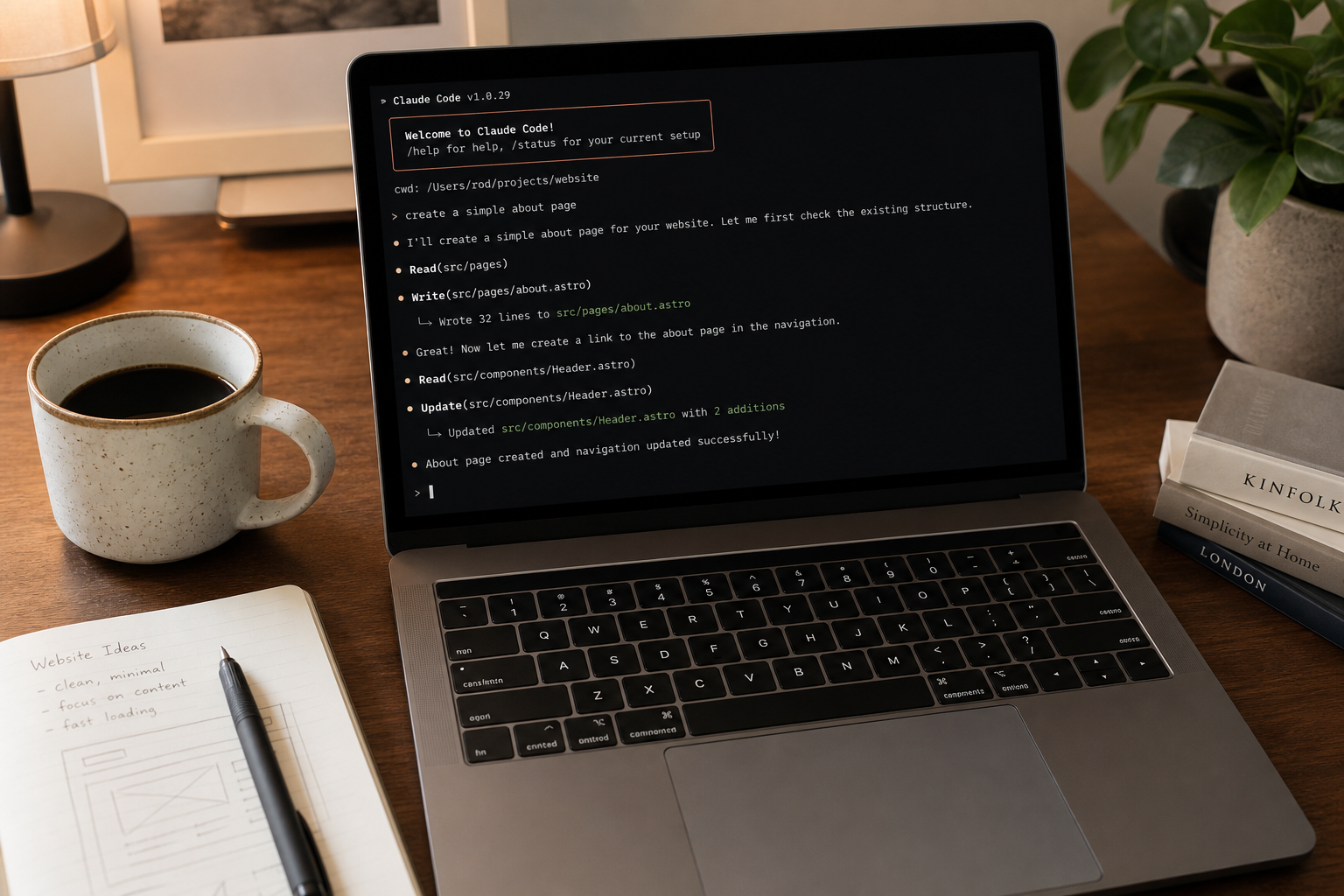
Claude Code has been getting a lot of attention among engineers lately. It's a tool from Anthropic that lets you code by chatting with an AI right inside your terminal (the black command-line window).
When you hear "coding by talking with an AI," you might picture a chat tool like ChatGPT. Claude Code is similar, but it's built specifically for coding. It runs as an AI assistant inside your terminal, and it can write code for you, fix bugs, and organize files.
What Can Claude Code Actually Do?
You can ask Claude Code things like "find and fix the cause of this error" or "add comments to this file," using ordinary sentences in Japanese or English. Claude Code actually reads your files, comes up with a proposed fix, and rewrites the code once you approve it.
Hearing "it rewrites the code automatically once you approve" might sound a little unsettling, but there's no need to worry. By default, it works in a mode that always asks "Is it okay to make this change?" before doing anything, so your code won't suddenly break without you knowing. You can turn down the number of confirmations once you get used to it, but at first it's best to proceed one confirmation at a time.
Getting Ready Before You Start
Getting set up to use Claude Code comes down to three main steps.
- Install Node.js (the underlying software needed to run JavaScript) on your computer
- Run the command
npm install -g @anthropic-ai/claude-codein your terminal to install Claude Code - Log in with your Anthropic account
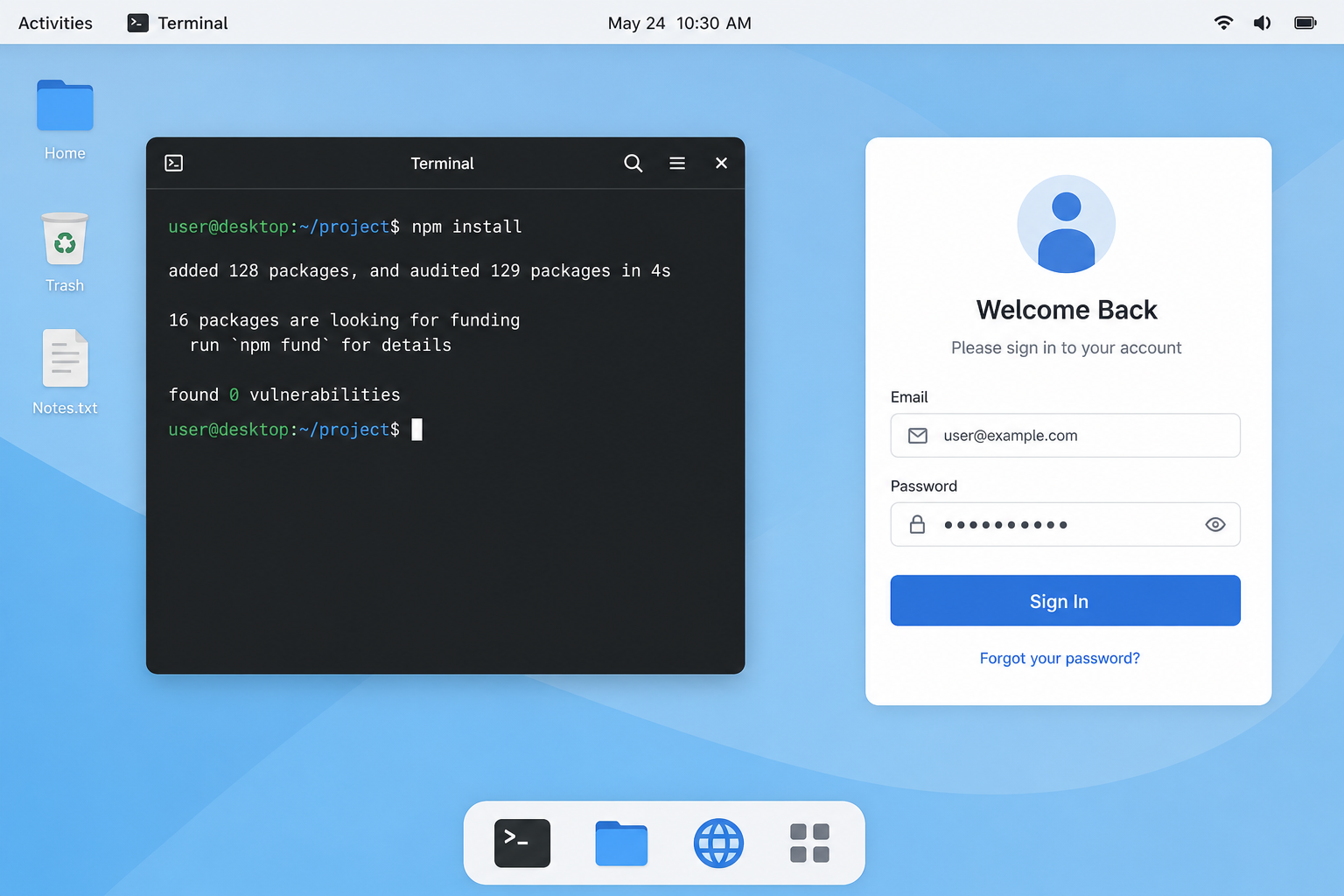
Typing commands can feel intimidating at first, but it's not difficult — just paste the command into your terminal and press Enter. Once installation is done, move to the folder for the project you want to work on and simply type claude to launch it.
Let's Try It Out
Once it launches, a chat-like input field appears. Just type whatever you want to ask or request in plain language. For example, you could try requests like these:
- "Give me a quick overview of this project's structure"
- "Fix the bug in login.js"
- "Add tests for this code"
One of Claude Code's strengths is that it actually reads and understands your code before answering, so its responses tend to be on-target rather than generic. If an unfamiliar term comes up, feel free to ask "what does that mean?" right back.
Common Beginner Pitfalls and How to Avoid Them
Here are some pitfalls beginners commonly run into, along with how to handle them.
1. Not knowing what to ask for → Start with simple questions that just ask for an explanation, like "explain what this file does." Once you're comfortable, move on to requests like "fix this" or "add this."
2. Feeling uneasy about a proposed code change → Claude Code always shows a diff (exactly what will change and where) before applying anything, so you can calmly read through it before giving the OK.
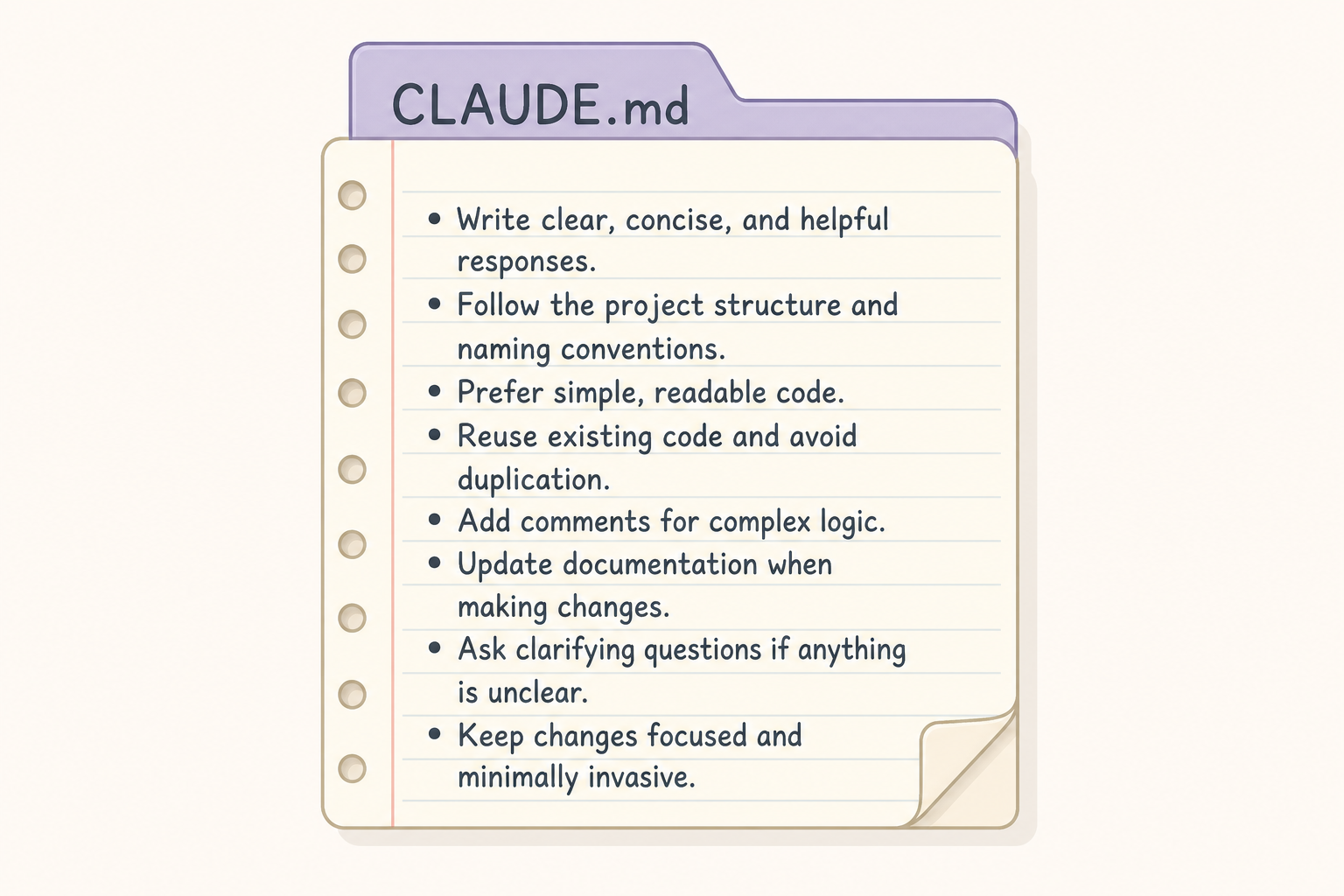
3. Having to explain the same context over and over → Create a file called CLAUDE.md with your project's rules and background information, and Claude Code will read it automatically every time, cutting down on repeated explanations. Summarizing your team's rules or preferences like "please write code in this style" there helps the AI act with that context in mind.
Summary
Claude Code is an AI coding companion that runs in your terminal, and it can explain, fix, and add to your code just by asking in plain language. Since it always confirms before making changes, even beginners can use it with confidence.
Start with "read this" or "explain this," and gradually work your way up to "fix this" or "build this" — you'll naturally pick up how to use it along the way. If you're ever unsure, you can even ask Claude Code itself; it's surprisingly good at explaining things.